
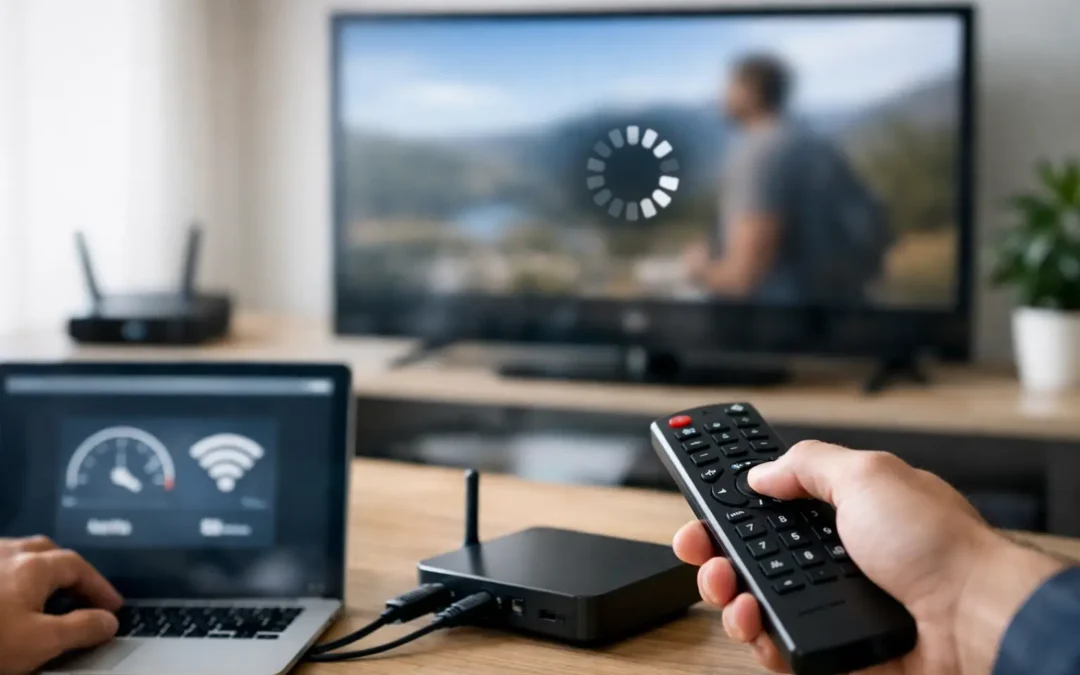
Nothing kills a big match or a film night faster than a stream that keeps freezing every few seconds. If you are searching for how to fix IPTV buffering, the good news is that most buffering problems are fixable in minutes, and you do not need to be a tech expert to sort them.
Buffering usually comes down to one of three things – your internet connection, your device setup, or the app and stream settings you are using. The trick is to stop guessing and check the right things in the right order. That is how you get back to stable viewing without wasting an evening rebooting everything at random.
How to fix IPTV buffering without overcomplicating it
Start with the simplest truth. Not every buffering problem means the IPTV service itself is bad. A weak Wi-Fi signal, an overloaded Firestick, a crowded home network, or the wrong player settings can all cause freezing, stuttering, or constant loading circles.
The fastest way to fix it is to test one variable at a time. If you change five things at once, you will not know what actually solved the issue.
Check your internet speed first
If your stream is buffering on live TV, sports, or 4K content, your internet speed is the first thing to rule out. For standard HD channels, you generally want a stable connection rather than just a high advertised speed. For Full HD and 4K, stability matters even more.
Run a speed test on the same device or on a nearby device using the same network. If your speed drops heavily during peak evening hours, that can explain why IPTV works fine in the morning but struggles when everyone is at home. It is not always about the top speed your provider sells you. It is about whether that speed holds up when the network is busy.
If the result looks weak, restart your router and test again. If speeds are still poor, move closer to the router or switch to Ethernet if your device allows it. A wired connection is almost always more stable than Wi-Fi, especially for live sport and UHD streams.
Wi-Fi is often the real problem
A lot of people blame buffering on the app or playlist when the issue is actually patchy wireless coverage. This is especially common with Smart TVs in back rooms, upstairs bedrooms, or homes with thick walls.
If you are using 2.4GHz Wi-Fi, you may get better range but more interference. If you are using 5GHz, you may get better speed but weaker reach. Which one works best depends on where your device is and how far it is from the router. There is no magic setting that suits every home.
Try moving the device closer to the router, switching Wi-Fi bands, or reducing interference from other devices. If your stream improves straight away on mobile data or in another room, that points strongly to a Wi-Fi issue rather than an IPTV issue.
Device performance matters more than people think
Even with decent broadband, an overloaded device can still struggle. This is very common on older Firesticks, budget Android boxes, and Smart TVs with limited memory.
Apps need free storage and working memory to cache properly. If your device is packed with unused apps, old downloads, and background processes, playback can become jerky or unstable. Clear cache, close apps running in the background, and restart the device fully rather than just exiting the app.
If your device has been on for weeks without a reboot, give it a clean restart. It sounds basic, but it works surprisingly often.
Update your IPTV app and device software
Outdated apps can cause buffering, login errors, EPG issues, and playback instability. The same goes for old device firmware. If your app has not been updated in a while, check for the latest version.
You do need a bit of balance here. Very old apps can cause problems, but a brand new update can occasionally introduce bugs on some devices. If buffering starts immediately after an update, the issue may be compatibility rather than speed. In that case, trying a different supported player can be the smarter fix.
Clear cache if streams take ages to load
If channels take too long to open or the app becomes sluggish after extended use, clear the app cache. Cached data is meant to help, but when it builds up too much, it can have the opposite effect.
Do not confuse cache with app data. Clearing cache is usually safe and will not normally wipe your login or playlist details. Clearing data is more drastic and may require you to set the app up again.
Player settings can make or break live IPTV
A lot of users never touch player settings, then wonder why one device buffers and another one does not. That is because different apps and players handle streams differently.
If your IPTV app lets you adjust buffer size, codec options, or player type, test them. A larger buffer can help on unstable connections, but it may also increase the delay before playback starts. A smaller buffer can feel faster, but it may be less forgiving if your internet dips. It depends on whether your issue is frequent freezing or slow channel loading.
Try switching between built-in players and any external player the app supports. Some players are better for live channels, while others handle VOD more smoothly. There is no universal winner across every device.
Reduce network strain at home
Your broadband is shared across your household. If someone is downloading large files, gaming online, backing up photos to the cloud, or streaming in 4K on multiple screens, your IPTV stream may feel the pressure.
This matters most in the evening when usage spikes. Try pausing heavy downloads, disconnecting unused devices, or testing the stream when fewer people are online. If buffering disappears, then congestion in your own home is likely the cause.
Some routers also let you prioritise streaming traffic through Quality of Service settings. That is not essential for everyone, but in busier households it can make a real difference.
How to fix IPTV buffering on Firestick and Smart TV
Firestick users should pay close attention to storage space, app cache, and Wi-Fi signal strength. These devices are convenient, but they are not invincible. If your Firestick is nearly full or tucked behind a TV with poor wireless reception, buffering becomes much more likely.
On Smart TVs, the issue is often the built-in hardware rather than the internet connection itself. TV apps can be less powerful than dedicated streaming devices, and software support is not always brilliant. If buffering continues on a Smart TV but not on another device in the house, the TV may be the weak point.
In that case, using a dedicated streaming device can be the better long-term fix. It is often cheaper and far less frustrating than trying to force a television app to do a job it handles badly.
Try another channel or category before assuming the worst
If one channel buffers but everything else works, the problem may be limited to that specific source rather than your full setup. Test a few live channels, then test VOD. If only one stream is affected, you are looking at an isolated issue.
If every channel and every category buffers, the problem is more likely to be local – internet, device, app, or home network. That distinction saves time because it tells you where to focus.
A provider with proper support and stable infrastructure should help quickly when it is a source-side issue. That is one reason many users choose a service that prioritises anti-buffer performance and fast setup support, such as IPTV Subscription, rather than just chasing the lowest possible price.
When a VPN helps – and when it does not
A VPN can sometimes improve IPTV performance if your internet provider is routing traffic badly or applying throttling at busy times. But it is not a guaranteed fix. In some cases, a VPN makes speeds worse because it adds extra distance or strain.
If you suspect throttling, test with and without a VPN and compare the results. If the stream improves, keep using it. If it gets slower, switch it off. This is one of those areas where guessing is pointless and testing is everything.
The smart way to stop buffering for good
If you want the best chance of stable streaming, keep your setup simple. Use a reliable internet connection, place your device where Wi-Fi is strong or use Ethernet, keep your app updated, clear cache regularly, and avoid maxing out your home network during peak viewing.
Most IPTV buffering is not caused by one dramatic fault. It is usually a combination of small issues that stack up – weak Wi-Fi, low storage, poor player settings, and crowded bandwidth. Fix those one by one and the difference is usually immediate.
When your setup is right, IPTV should feel easy. Quick channel loading, smooth live sport, and films that play without freezing should be the standard, not a bonus. If your stream keeps stopping, do not put up with it. Work through the basics properly, and you will usually have it sorted long before kick-off.